RallyPath Help Center
WebsitePrivacy policyContact us
Get the app
WebsitePrivacy policyContact us
Help Centersupport@rallypath.app
Get the app
Start here
Install and first launchLog your first sessionA tour of the five tabs
Sessions
Log a sessionAdd match resultsAdd skills, notes and photosEdit or delete a sessionFind a past session
Apple Health
Give permissionAttach a watch workoutCannot see my workoutsWhat we read
Skills
Rate a skillThe focus starRead the dashboardEdit a past evaluation
Review
Week, Month, All TimeWhat each number meansWhy a number is missing
Share
Card or StickerChoose a layoutSticker on your own photo
Settings and your data
Back upRestore on a new phoneDelete all dataWhere your data livesLight or dark
Troubleshooting
App does not openPhoto did not importData disappeared
Contact
How to reach us
Settings and your data · 5 articles
Back upRestore on a new phoneDelete all dataWhere your data livesLight or dark
Help Center›Settings and your data›Light or dark
Settings and your data

Light or dark

Settings, then Appearance: follow the system, or force light or dark.

About 1 minute

In Settings, the Appearance card offers System, Light and Dark. System follows your phone, including any schedule you set in iOS.
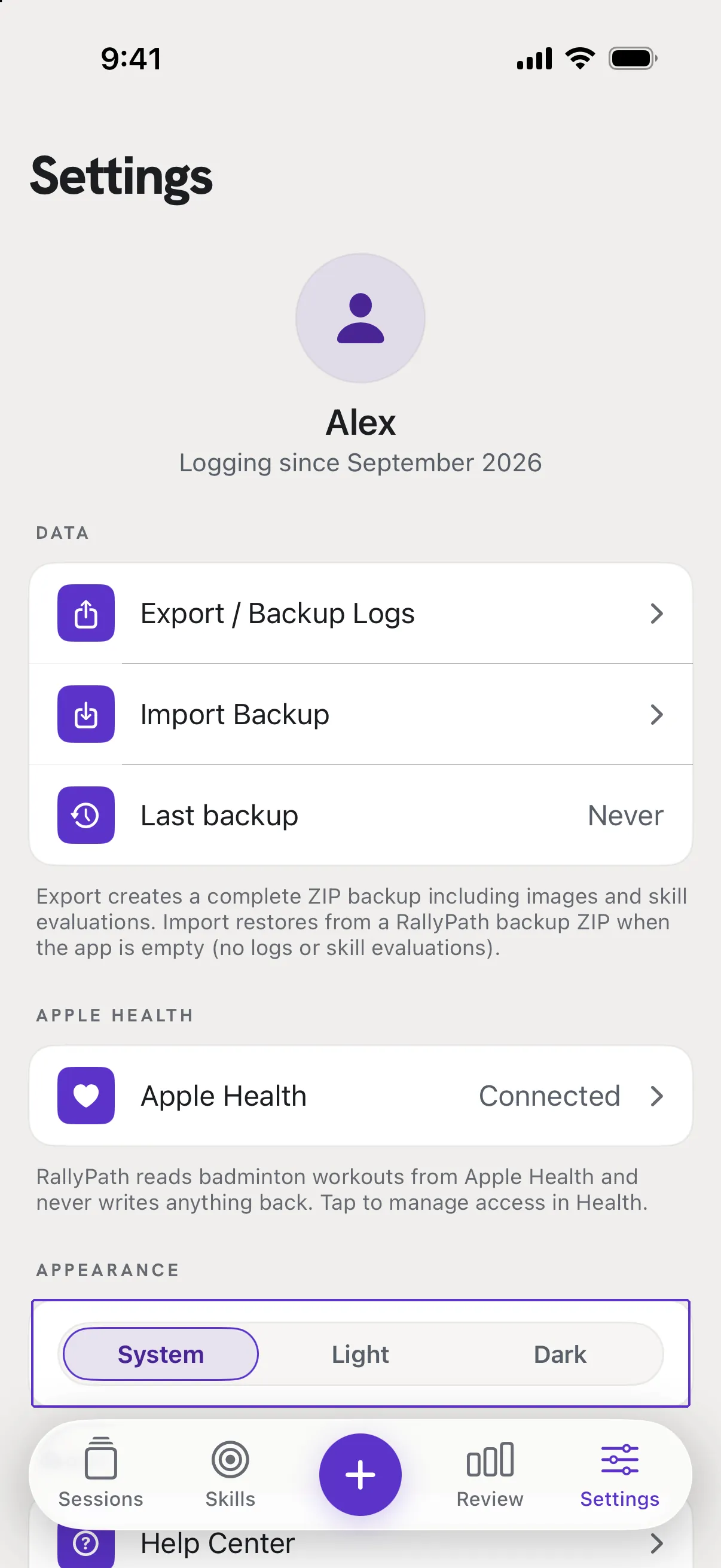
The Appearance card in Settings with System, Light and Dark.

Good to know

Do share cards follow this?
No. Cards have their own colours so they look the same wherever they are posted.
RelatedA tour of the five tabs
‹ PreviousWhere your data livesNext ›The app does not open, or closes straight away
© 2026 RallyPath. All rights reserved.
Privacy policyHelp Centersupport@rallypath.app