Share
Share a session: card or sticker
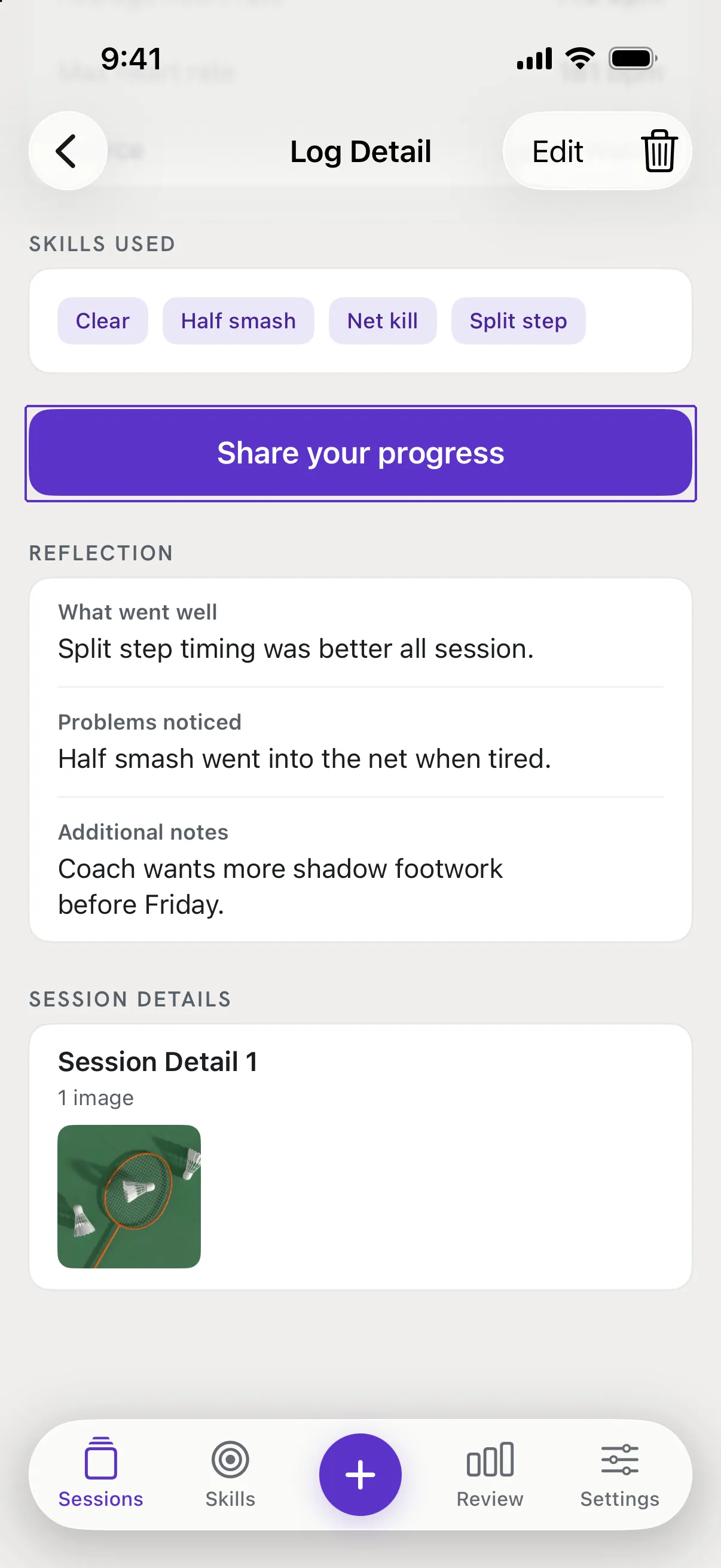
Open a session, tap Share your progress, choose Story for a finished image or Transparent for a sticker.
Before you start
Cards are made on your phone from the session's numbers. Notes, photos and reflections are never included.
Steps
Open the session and tap Share your progress
The button sits below the session's cards. The Share screen opens with a preview.
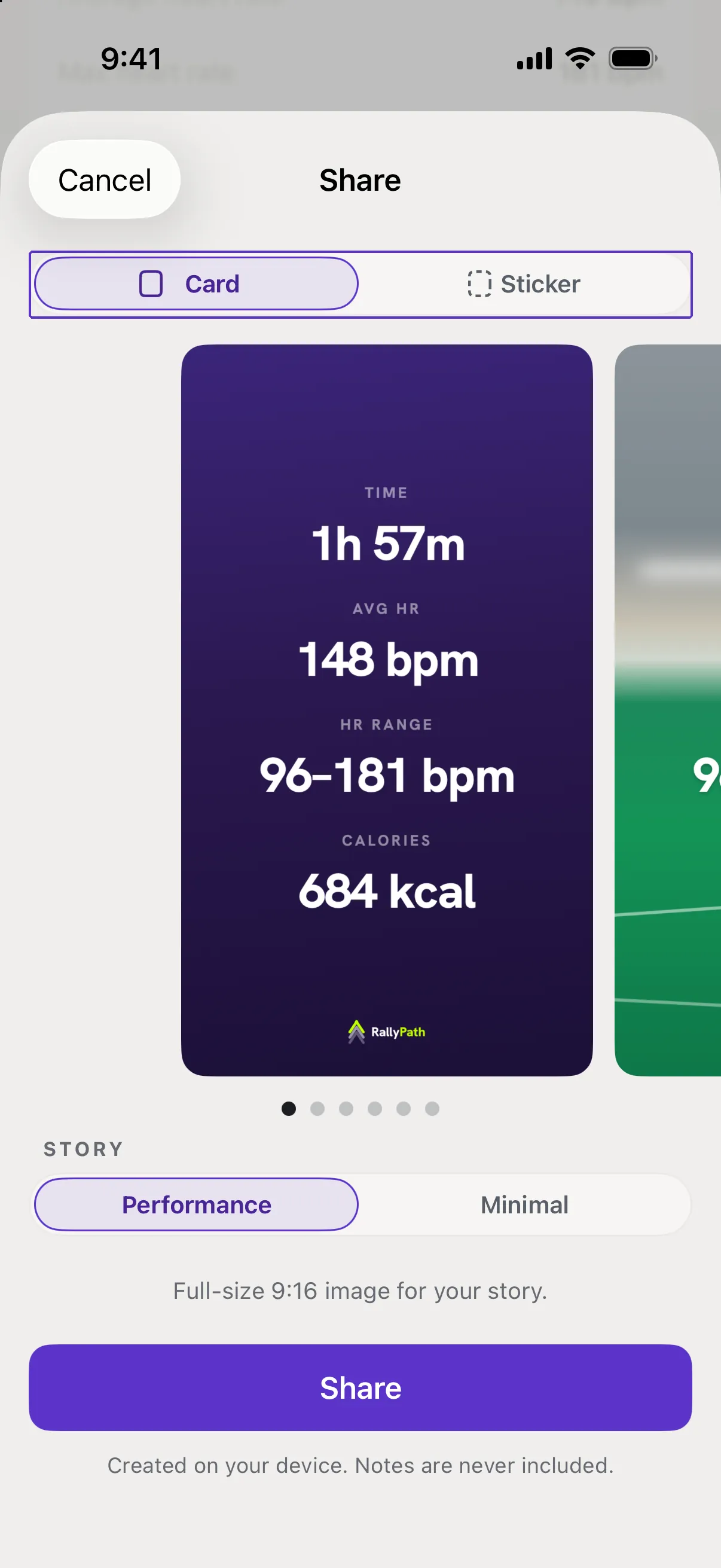
Choose Card or Sticker
The switch at the top. Card is a finished full-size 9:16 image, ready to post as a story. Sticker is the same content as a transparent PNG - lay it over your own photo or video.
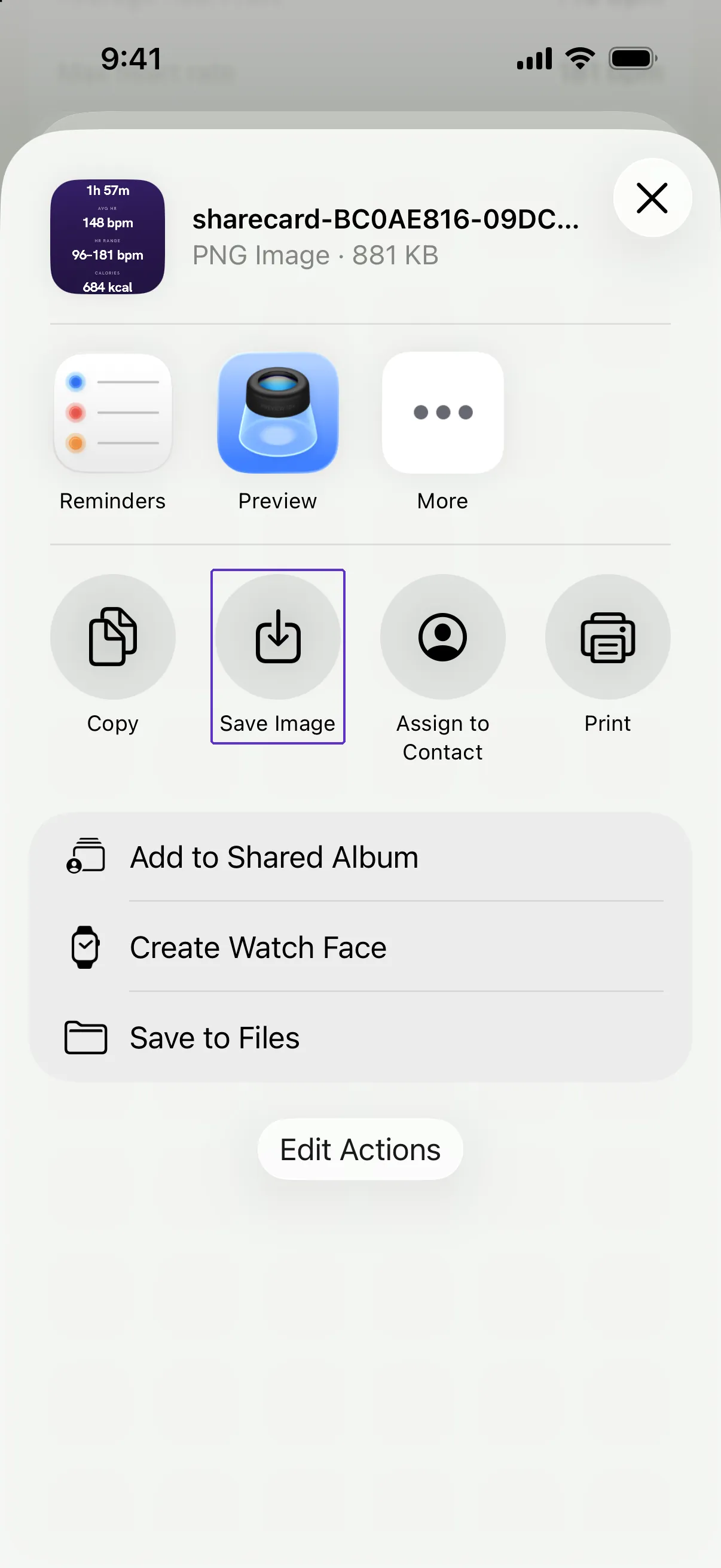
Tap Share
The iOS share sheet opens. Choose an app, or Save Image to put it in Photos. RallyPath confirms with Saved to Photos or Shared.
Good to know
- Does RallyPath post anything itself?
- No. It hands the image to the share sheet; you choose where it goes.
- It asked for Photos permission.
- That is iOS asking, the first time you save an image. RallyPath only needs permission to add the image, not to read your library.