Start here
Quick Start and Coach
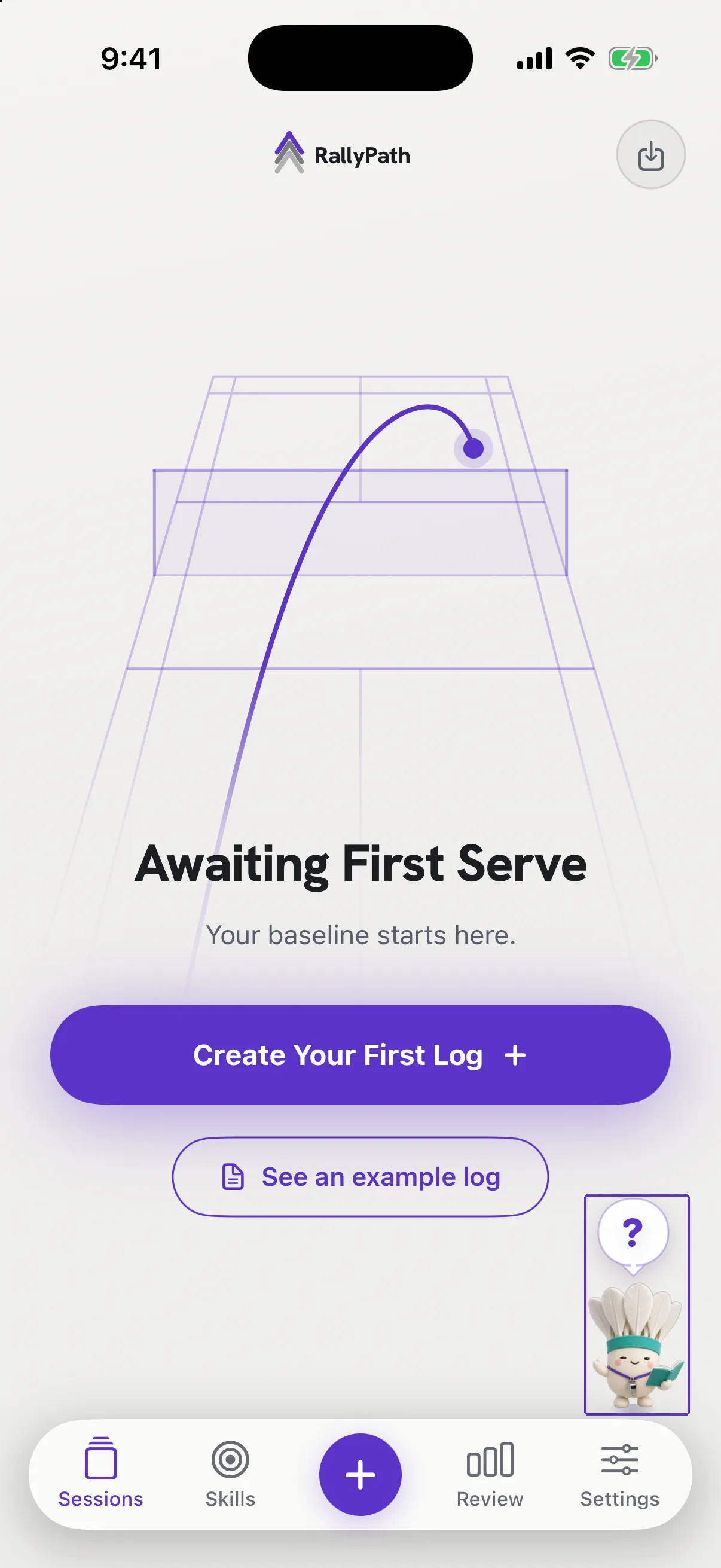
Coach is the small helper in the bottom-right corner of RallyPath.
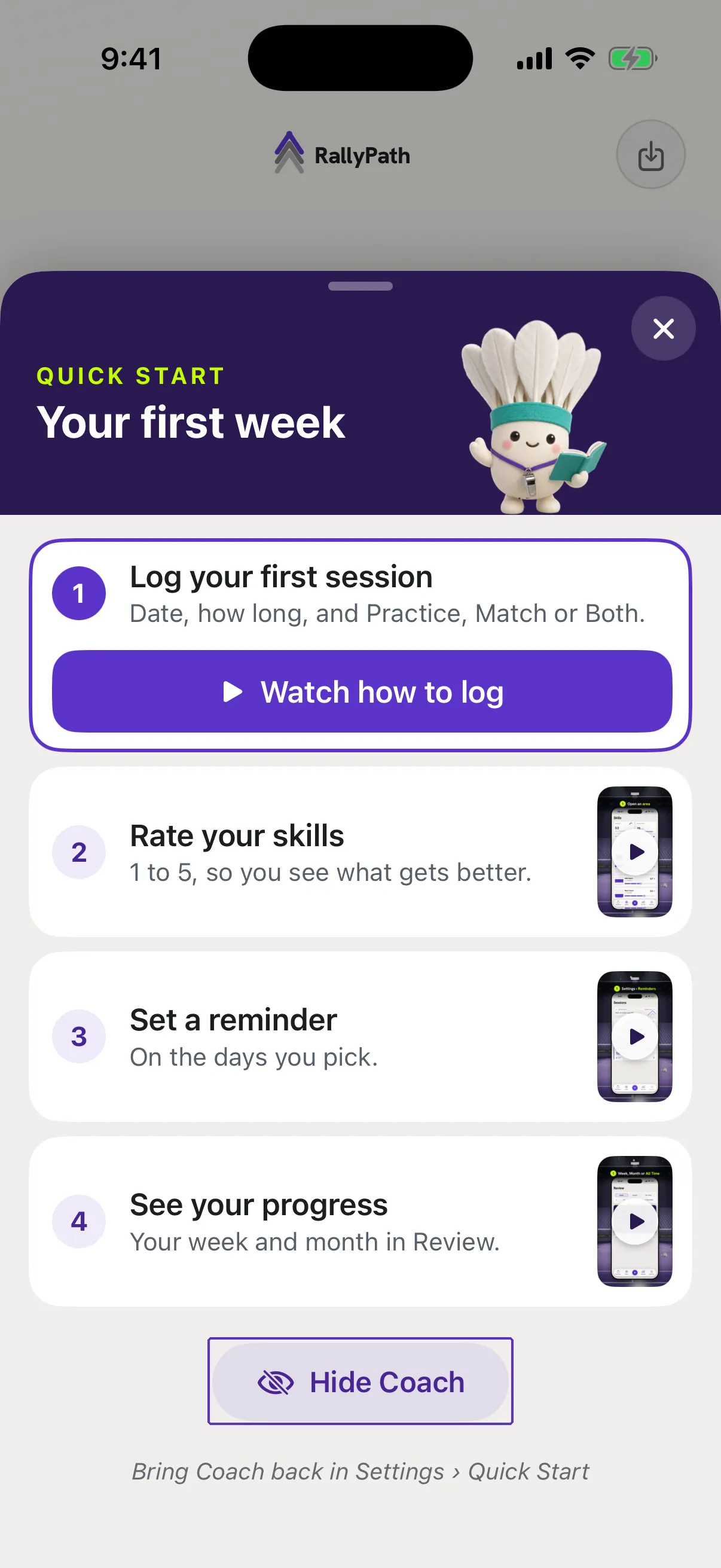
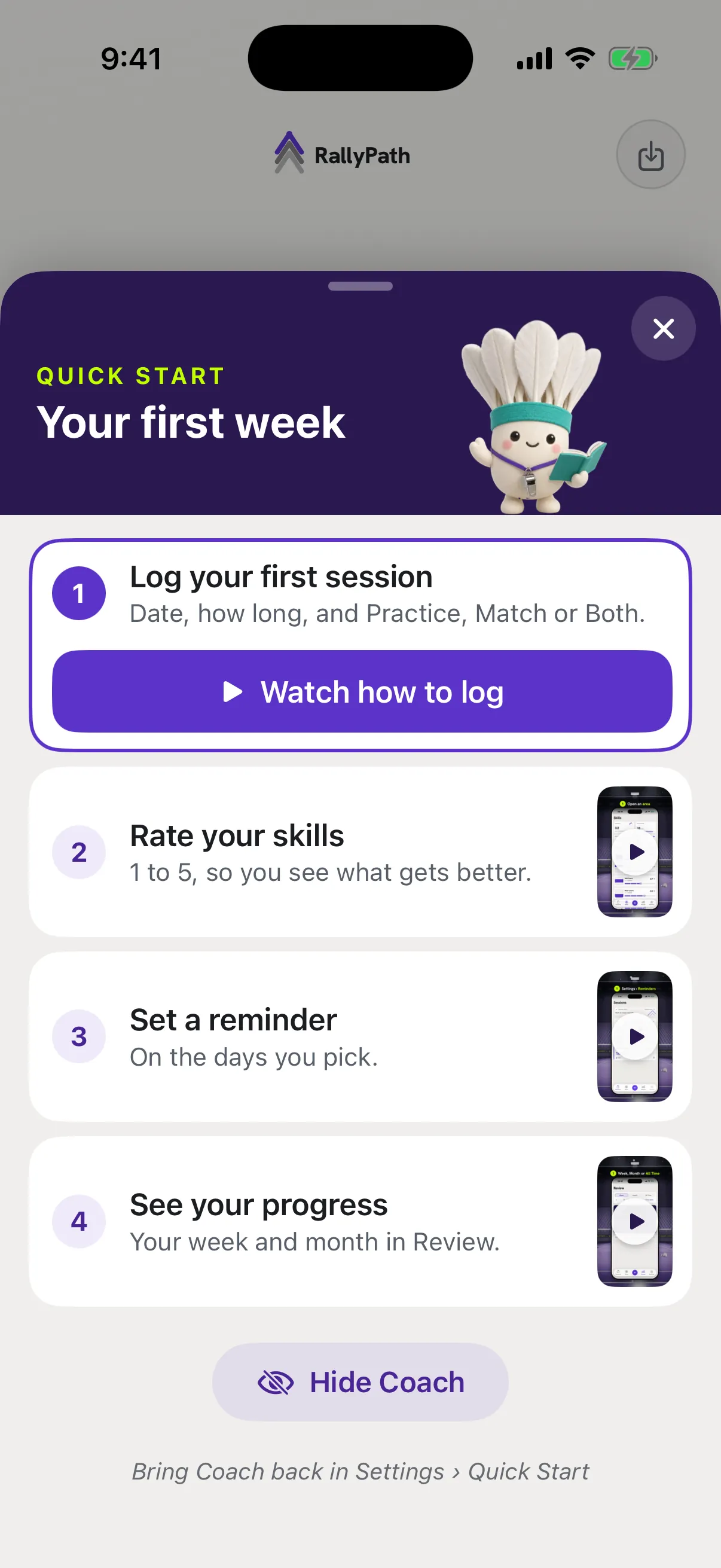
Coach is the small helper in the bottom-right corner of RallyPath. Tap it and it opens Quick Start: a short checklist with a tutorial video for each of the four first things most players do.
Steps
Tap Coach or the "?" above it
The Quick Start checklist opens.
Pick a step
There are four: Log your first session, Rate your skills, Set a reminder, See your progress. You can open them in any order.
Watch the video
Each step has its own tutorial video, and it plays inside the app.
Do the step
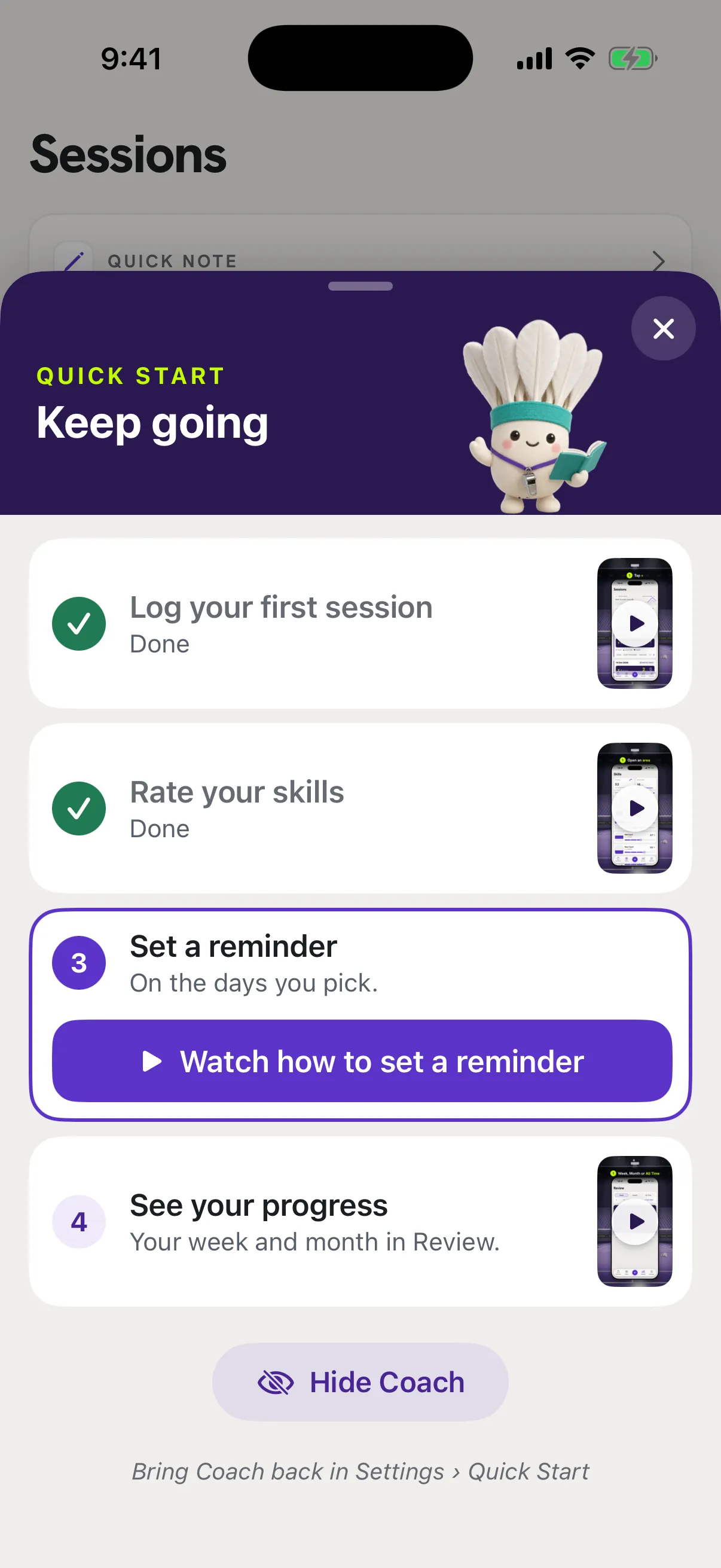
A step ticks itself when you really do it. You do not need to tick anything by hand.
Good to know
- Where you will see Coach
- Coach sits in the bottom-right corner of Sessions, Skills, Review, Settings and New Log. The first time you open the app, Coach waves, plays a short sound and says "Need help? Tap me for a quick start". After that it shows a small "?".
- Close the checklist, or hide Coach
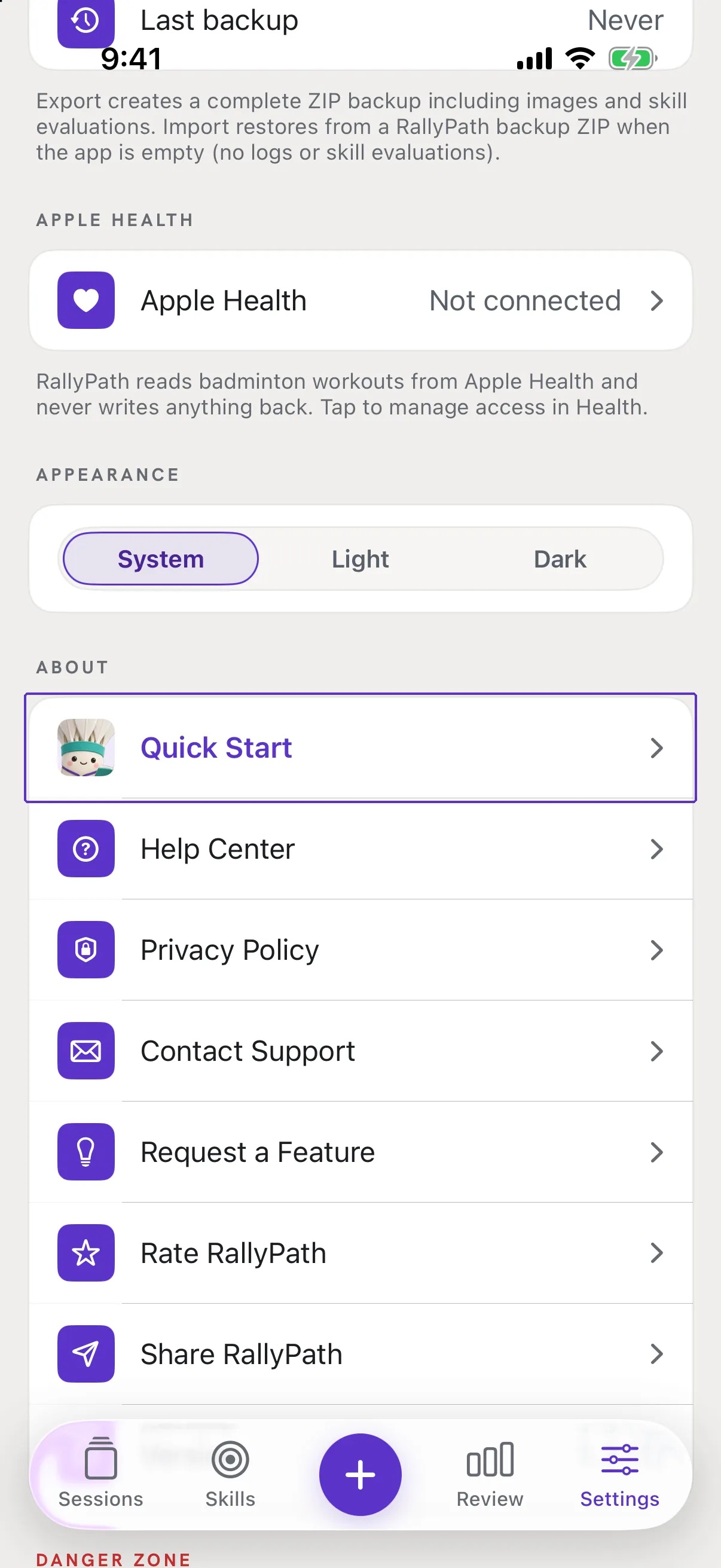
- To close the checklist and keep Coach, tap the X. Coach stays in the corner with its "?". To get Coach out of the way, tap Hide Coach. It is the soft purple button with an eye icon at the bottom of the checklist. Under it, a grey line reads "Bring Coach back in Settings › Quick Start". Tapping Hide Coach closes the checklist and Coach goes. To bring Coach back, go to Settings › Quick Start. That opens the checklist and Coach returns.
- When you finish
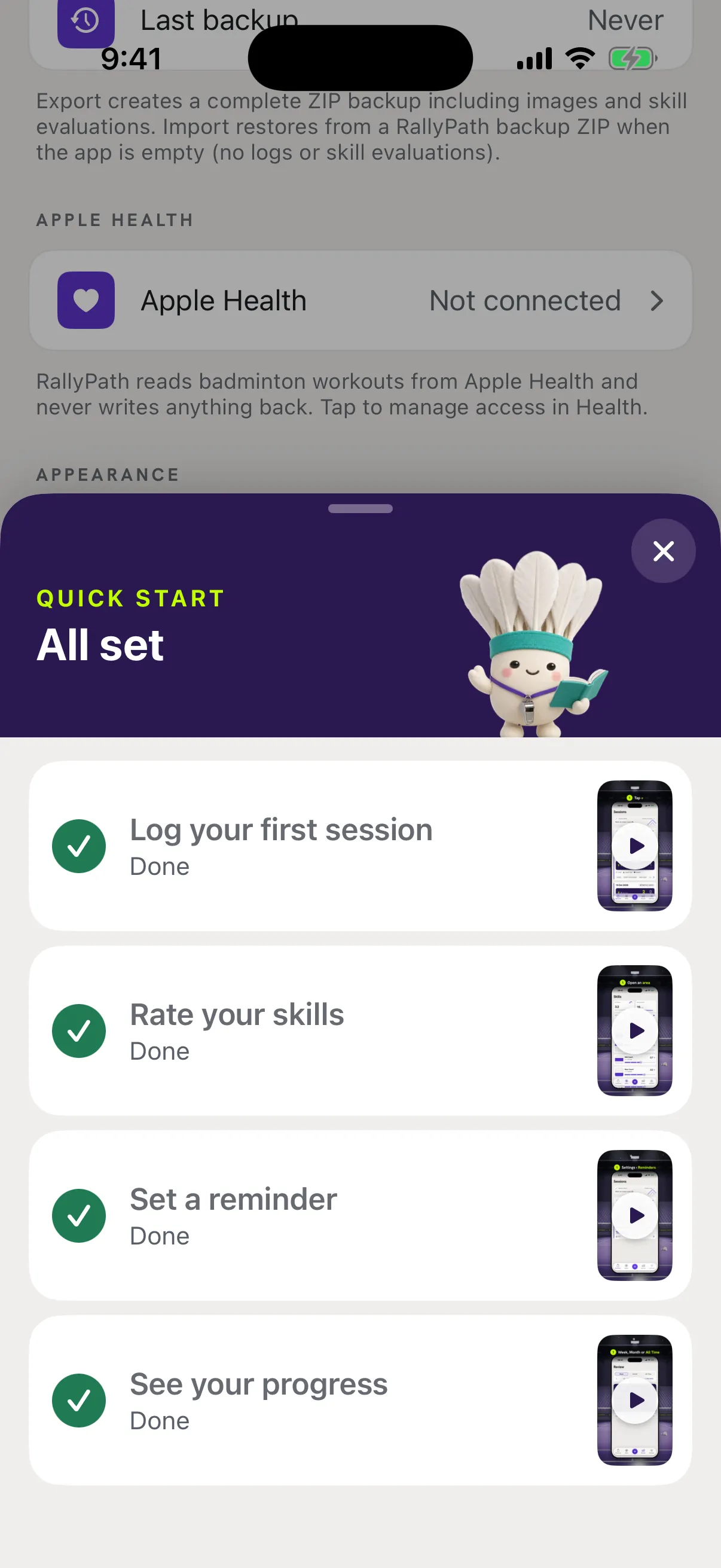
- When all four steps are done, Coach goes away by itself and does not come back. Settings › Quick Start still opens the checklist, so you can watch the videos again.
- More to know
- Coach is a helper, not something you have to use. Every step in Quick Start is also covered by a Help Center article. Hiding Coach does not delete anything you have logged. If you restore a backup, Coach starts hidden. Open Settings › Quick Start to see the checklist. Delete All Data starts Coach again, as on a new phone.